Editing an AI-generated video means editing its inputs, the keyframes and descriptions that produced it, and re-rendering only the shot that changed. A traditional editor still handles trims, reorders and titles, but it cannot move a character two feet left, because footage is just pixels. Generated video is different: the recipe that made it still exists, and the recipe is editable.
Cutting-room fixes: trim the dead second, reorder shots, swap music, add titles. Any editor since the 1990s does these to generated footage exactly as it would to camera footage.
Recipe fixes: the cat should stop nearer the table, the line reading is wrong, the background needs dusk instead of noon, the walk is too slow. No timeline tool can do any of these, and this is where editing generated video actually happens: back at the keyframes.
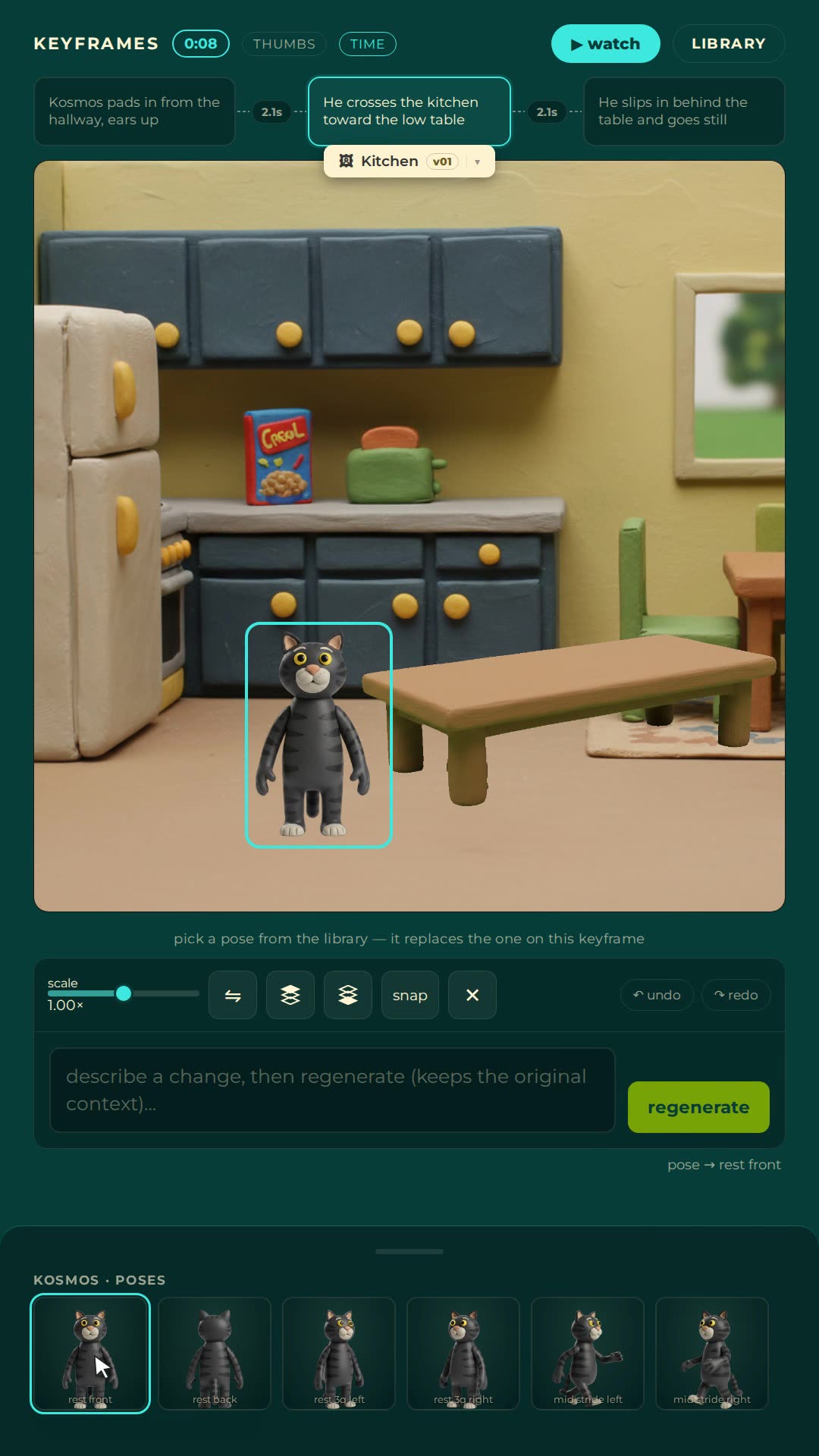
Two eight-second edits inside a real project. First, a pose swap: the character is selected, a pose library opens, a stance is replaced with one click:
Second, the move that makes small motion edits fast, copying the previous keyframe. The last key duplicates forward and you nudge the one thing that moved, with a ghost of the previous position still visible for reference:
The editor's regenerate box takes a described change, "same shot, but his ears flat and tail low", and redraws the keyframe with its context intact. You are not re-prompting from zero; the scene, style and character stay pinned, and the description only names the delta. It is the closest thing this medium has to grabbing a pencil:
Judge everything at the still stage. A keyframe is inspectable in a second and fixable in ten; a rendered shot costs minutes to produce and can only be accepted or thrown back. People who render early and often are re-buying the same shot five times. People who argue with the stills until they are right usually render once.
The corollary matters just as much: a tool has to re-render a single shot and splice it back into the film. If any one-line fix means re-rendering the whole piece, editing long work becomes economically impossible.
For trims, reordering, sound and titles, yes, treat it as normal footage. For changing anything inside a shot, no. That requires the shot's keyframes, which a video file does not carry.
The tool redraws a keyframe from your described change while keeping the scene's style, location and characters pinned. Only the delta you named changes. Prompting from scratch, by contrast, re-rolls everything at once.
Your tool regenerates globally instead of per shot. Look for per-shot rendering and splicing; without it, every fix gambles the parts that were already right.
Showing the previous frame as a ghost under the current one, an animator's trick that predates film sound. Keyframe editors carry it forward as a show-previous overlay, and it is the fastest way to judge how far anything moved between keys.
Nima's editor does pose swaps, ghosted onion skins, described-change regeneration and per-shot re-renders. Try it free.